
New request
Open a Support Ticket
Signed-in clients use the Open Ticket page to send DSE a new service request with the details needed to triage and route the work.
Production address
https://helpdesk.dsesecurity.com/
Confirm HTTPS and the exact domain before entering account or ticket information.
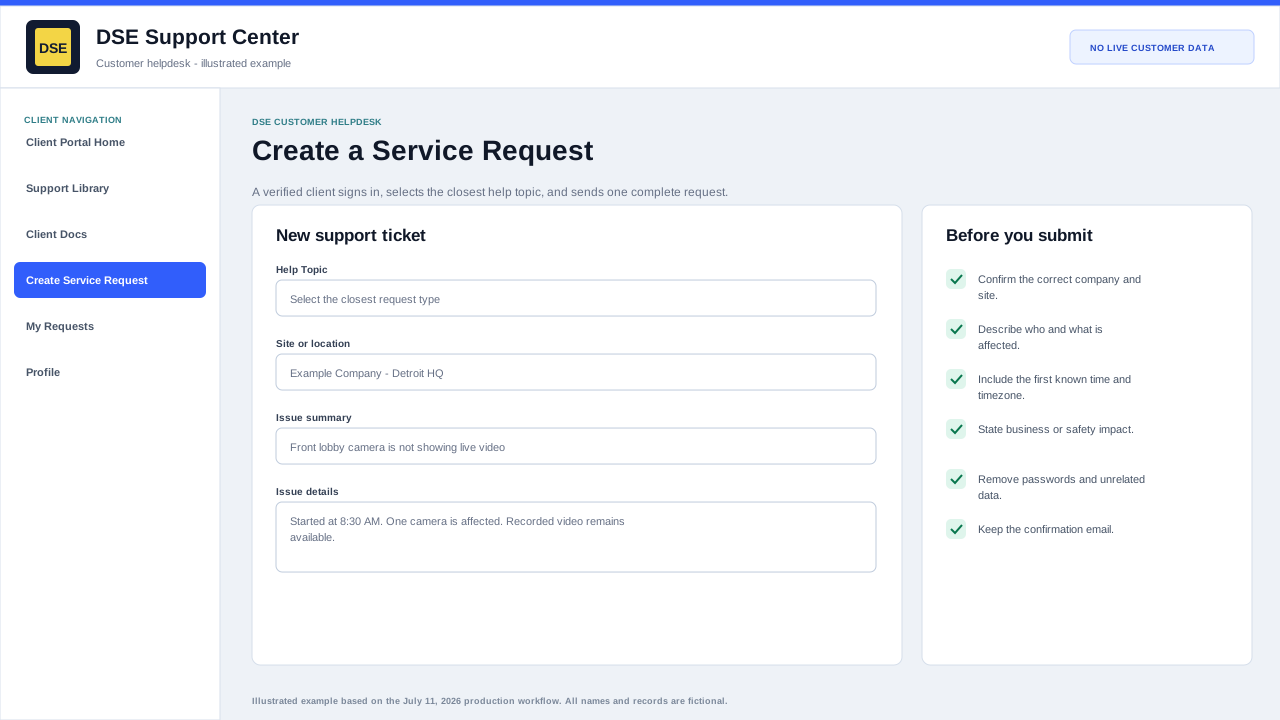
Before the ticket form opens
- Create and verify your individual client account if you have not already done so.
- Sign in at https://helpdesk.dsesecurity.com/login.php. The Create Service Request link takes signed-out visitors to this secure sign-in step.
- Have your company, exact site, callback number, first known time, affected people or devices, impact, and safe evidence ready.
Submit and verify the request
- Confirm the requester, company, and site when those values are shown.
- Choose the closest help topic, write a concise subject, and describe the issue in complete sentences.
- Attach only relevant redacted files and wait until every filename appears in the form.
- Review once, submit once, and wait for the confirmation page and email.
- Open My Requests or Check Request Status before resubmitting when a confirmation is delayed.
Information to include
- Site name, building, suite, or location.
- Affected user, workstation, camera, door, panel, device, or service.
- What is happening and when it started.
- Whether the issue affects one person, one device, one site, or everyone.
- Screenshots, photos, error messages, or example timestamps when available.
How to submit
- Sign in with the verified email address for your DSE client account.
- Select Create Service Request or Open a New Ticket.
- Complete the required contact and ticket fields.
- Choose the closest help topic or request type available.
- Describe the issue clearly and attach supporting files if needed.
- Submit the request and keep the confirmation email for your records.
Content owner: DSE Service Operations. Production reviewed July 11, 2026.