
Summary: Use the email-and-ticket-number status tool or sign in to review an authorized request, read DSE updates, and continue the same conversation.
Use the correct ticket access method
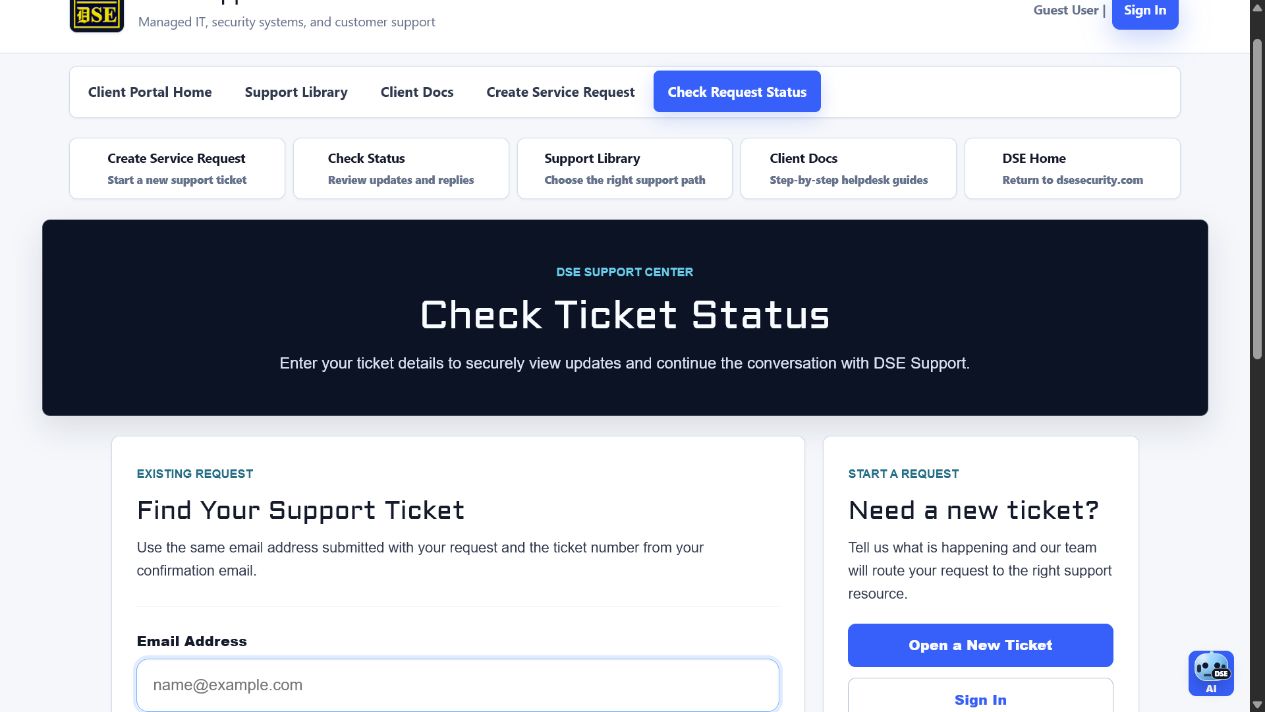
- For one known ticket, open https://helpdesk.dsesecurity.com/view.php and enter the same email address used on the request plus the ticket number from the confirmation email.
- Select Email Access Link and use the newest link delivered by the DSE ticket system.
- For full authorized history, sign in and open My Requests.
- Read the newest staff entry before replying, answer every requested question, and keep the update on the existing ticket.
- If access fails, send DSE your name, company, site, ticket number, and expected access. Never send a password or verification code.
Access a ticket without opening account history
- Open Check Request Status.
- Enter the exact requester email address used on the ticket.
- Enter the DSE ticket number from the confirmation email.
- Request the secure email access link and use it only from a trusted device.
Access tickets from an account
- Sign in and open My Requests or the ticket list.
- Select the matching number or subject.
- Review the latest status, DSE reply, attachments, and requested next action.
- If an expected ticket is missing, ask DSE to verify the requester, company, site, and ticket-sharing settings.
Reply clearly
- Answer every technician question and identify any step you could not complete.
- Add new timestamps, exact errors, photos, or screenshots when the situation changes.
- Provide scheduling availability and the best callback contact when requested.
- Keep unrelated new issues in a separate ticket so priorities and history stay clear.
Related resources
Content owner: DSE Service Operations · Production review: July 11, 2026