
Summary: Use the Support Center to create and track service requests, read customer-safe documentation, and keep every reply attached to the correct ticket.
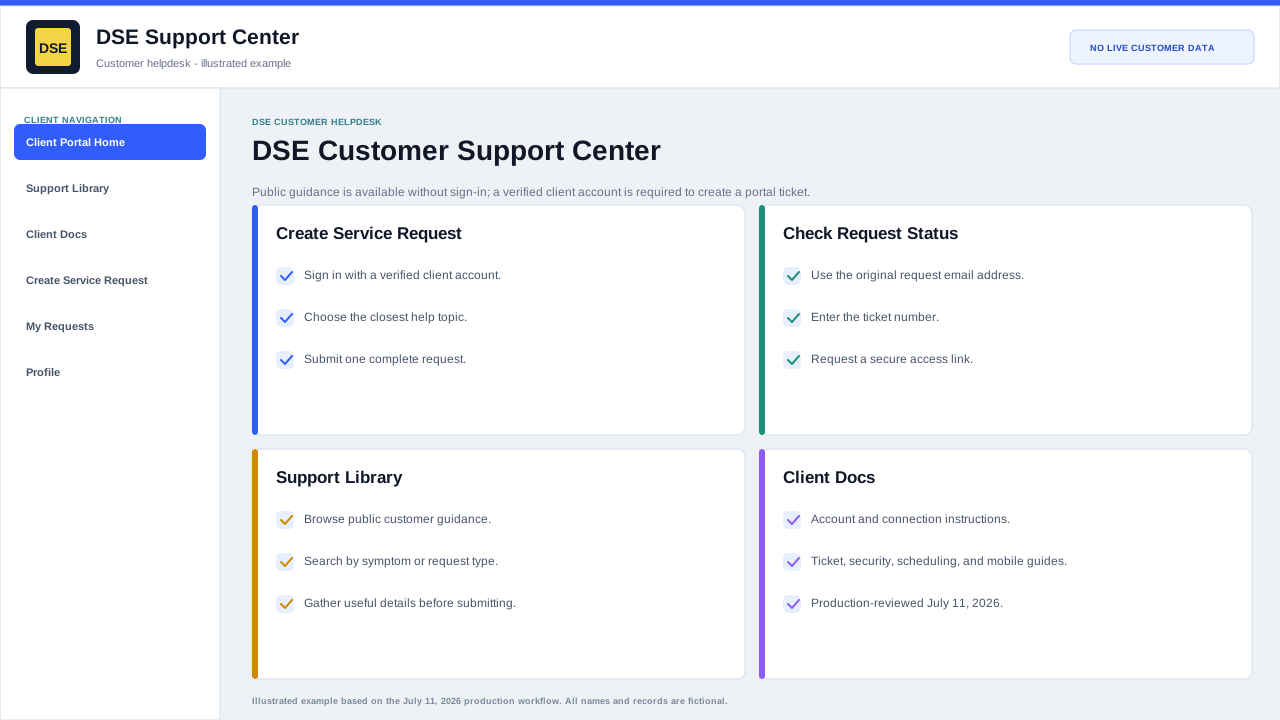
Connect to the production customer helpdesk
- Open a current browser and go directly to https://helpdesk.dsesecurity.com/.
- Confirm the address bar shows HTTPS and the exact dsesecurity.com domain. Stop if the browser shows a certificate warning, a different domain, or an unexpected sign-in page.
- Use Support Library or Client Docs without signing in when you need public guidance.
- Choose Sign In or Create Service Request when you need to create a portal ticket. Portal ticket creation requires a verified client account.
- Use Check Request Status when you have the email address and ticket number for an existing request.
- Use helpdesk@detection-systems.com when email is the better intake path or a portal problem prevents ticket creation.
What to have ready before connecting
- Your own business email address, full name, company, site, and callback number.
- A concise issue summary, first known time, affected people or devices, business impact, and safe evidence.
- The ticket number from the confirmation email when the request already exists.
- A current version of Chrome, Edge, Safari, or another browser approved by your organization.
Choose the correct starting point
- Use Support Library or Client Docs when you want instructions before contacting DSE.
- Use Create Service Request for a new issue. The production portal requires a verified client account before the ticket form opens.
- Use Check Request Status when you have the ticket number and the email address used on the request.
- Use Sign In to see the tickets available to your account and to reply from the portal.
What a good support request contains
- Company and site or building where the issue is occurring.
- Affected person, workstation, camera, door, panel, application, network, or service.
- What changed, when the problem began, and whether it is constant or intermittent.
- Business impact, number of affected users or devices, and any safe workaround.
- Screenshots, photos, exact error text, or event timestamps when they are useful.
What happens after submission
- The system assigns a DSE ticket number and sends a confirmation notice when email delivery succeeds.
- DSE reviews the selected help topic, request details, company, site, and business impact.
- A technician may reply with questions, troubleshooting steps, scheduling options, or a resolution.
- Keep related updates on the original ticket so its history remains complete.
Important: The Support Center is not an emergency-response channel. For an immediate threat to life or property, contact local emergency services and follow your site emergency procedure before opening a DSE ticket.
Related resources
- Create or access your client account
- Open a service request
- Check request status
- Browse client documentation
Content owner: DSE Service Operations · Production review: July 11, 2026