
Summary: The customer portal is responsive and can be used on current phones, tablets, and desktop browsers for account access, ticket status, replies, and attachments.
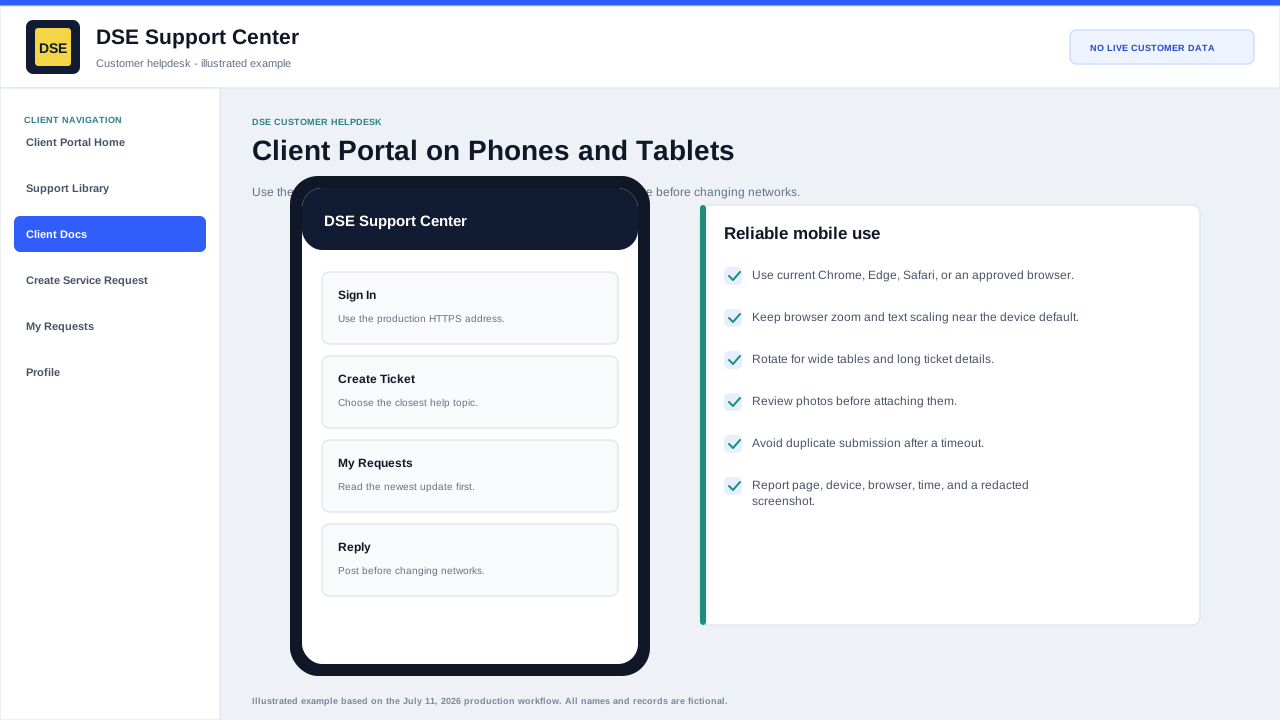
Mobile connection and reliability standard
- Use the production HTTPS address and a current mobile browser; avoid an embedded browser inside an email or messaging application when sign-in behaves unexpectedly.
- Keep browser zoom and device text scaling near the default while completing forms, and rotate the device for wide tables.
- Review every selected photo or file before upload because mobile pickers can expose recent unrelated items.
- Submit or save the reply before switching networks, locking the device, or leaving the browser for an extended time.
- Use a desktop browser for dense account or administrative work when the mobile page cannot show enough context safely.
Supported use
- Use a current version of Chrome, Edge, Safari, or Firefox with JavaScript and cookies enabled for the Support Center.
- Portrait mode is usually easiest for forms; landscape mode can help when reading wide ticket details.
- Use browser zoom or operating-system text settings when needed; the interface is designed to reflow without horizontal scrolling.
- On a phone, use the system file picker or camera option to add an authorized photo or screenshot.
Reliable submission habits
- Use a stable connection before writing a long reply or uploading a file.
- Keep a local copy of lengthy technical notes until the ticket confirms submission.
- Do not switch accounts in another tab while completing a ticket form.
- Wait for the confirmation page or updated conversation before closing the browser.
If the layout looks wrong
- Reload the page once and return the device to 100 percent browser zoom.
- Close private browsing if it is blocking cookies or file access.
- Try the device default browser and capture a screenshot if the issue continues.
- Include device model, operating-system version, browser name, and page address in the support request.
Content owner: DSE Service Operations · Production review: July 11, 2026